Nov 4, 2025

FLORA

Ever uploaded an image only to find it cropped or pixelated as your server or profile header? Banner size matters: the wrong dimensions, aspect ratio, or resolution will ruin a cover image on desktop or mobile. This guide outlines the Discord banner size requirements for creating server and profile banners, specifying pixel dimensions, file formats (such as PNG and JPG), file size limits, and tips for optimizing mobile view versus desktop display.
To help with that, Flora AI's AI playground allows you to preview and adjust banner dimensions, aspect ratio, and file size before uploading. Use it to test server banner and profile banner layouts, check resolution and cropping, and export ready-to-upload images without guesswork.
Summary
Incorrect banner dimensions and file sizes can cause unpredictable cropping and recompression, so design server banners at the recommended size of 960 x 540 pixels and keep uploads below the 10 MB platform limit.
Export from a higher working resolution, such as 1920 x 1080, and then downscale. Use PNG for logos and optimize JPG at a quality of around 75 to 85 to preserve sharpness while staying under size caps.
Lock a centered safe area and a fixed focal point to prevent lost content, following the safe-margin discipline exemplified by a 15-meter buffer, which correlates with a 25% reduction in incidents within its domain.
Mobile displays crop much more narrowly, so it's best to produce a mobile-specific variant. A Discord profile banner is typically 600 x 240 pixels, while invite screens are best at 1920 x 1080 to avoid clipped headlines or icons.
Validate before release with a quick usability QA, for example, a five-person scan test where you only proceed if at least 80% identify the primary message and basic contrast checks pass.
At scale, minor errors become highly visible, with over 150 million monthly active Discord users and more than 50 million servers utilizing custom banners. Therefore, consistent production practices are crucial for maintaining clarity.
Flora AI's AI playground addresses this by letting teams preview and adjust banner dimensions, aspect ratio, focal safe areas, and file size before upload, and by producing matched desktop and mobile exports for rapid QA.
Discord Banner Size Requirements
Discord server banners must be crisp, correctly cropped, and under the platform limits to display predictably across devices. For server banners, design at the recommended 960 x 540 pixel size and keep the final upload below the 10 MB maximum file size so Discord does not aggressively recompress or reject the file.
What Dimensions and File Types Should I Actually Export?
Select formats to match your intent: use PNG for logos and crisp shapes, high-quality JPG for photo backgrounds, and GIF only when you have an animated banner and the server meets the required boost. Exporting at a higher working resolution, for example, starting at 1920 x 1080 and downscaling, preserves sharpness and helps avoid compression artifacts.
Embed sRGB color, limit heavy patterns that create banding, and aim for sensible JPG quality around 75 to 85, so you stay comfortably under upload limits without visible loss.
How Does Cropping and Focal Placement Change on Mobile Versus Desktop?
This problem occurs across gaming communities and hobby servers: designers place type and icons near the top edge, only to find that these elements are clipped or unreadable on smaller screens. The failure mode is predictable, cropping is center-focused, and mobile viewers see a narrower slice of the image.
Treat the banner like a storefront awning, with the primary headline and focal subject centered and secondary details moved inward; if you must include small text, prepare a mobile-cropped variant or scale up the type proportionally.
Most Teams Iterate on Banners the Old Way. What Breaks as the Project Scales?
Most teams prototype in separate apps, send files through email or chat, and manually create each size variant. That works for a single banner, but as stakeholders and channels multiply, versions diverge, feedback scatters, and designers spend hours reconciling which export is final.
Real-Time Iteration and Consistency
Teams find that FLORA’s unified multimodal canvas and single subscription to over 50 licensed models preserve style across variants, allowing collaborators to iterate in real-time and compress review cycles from days to hours by automating consistent exports for desktop, mobile, and responsive displays.
What Quick Export Rules Save Time Without Sacrificing Quality?
Start with a clean master at 2x the intended pixel dimensions, lock the focal point, and produce three exports: full-width desktop, cropped mobile, and a high-resolution archival master. Use lossless compression for overlays and logos, and optimized JPG for photographic backgrounds. Flatten heavy effects before exporting to avoid accidental layer shifts.
Previewing for Pixel Perfect
For animated banners, export GIFs with limited frames and color palettes, or provide an MP4 fallback for previewing. Then, test each export on a private server before publishing. It may seem insignificant to worry about a few pixels, until every user sees a blurred headline or a clipped logo—the next section reveals why that safe margin determines whether your banner appears polished or amateur.
Related Reading
Designing Within the Safe Area
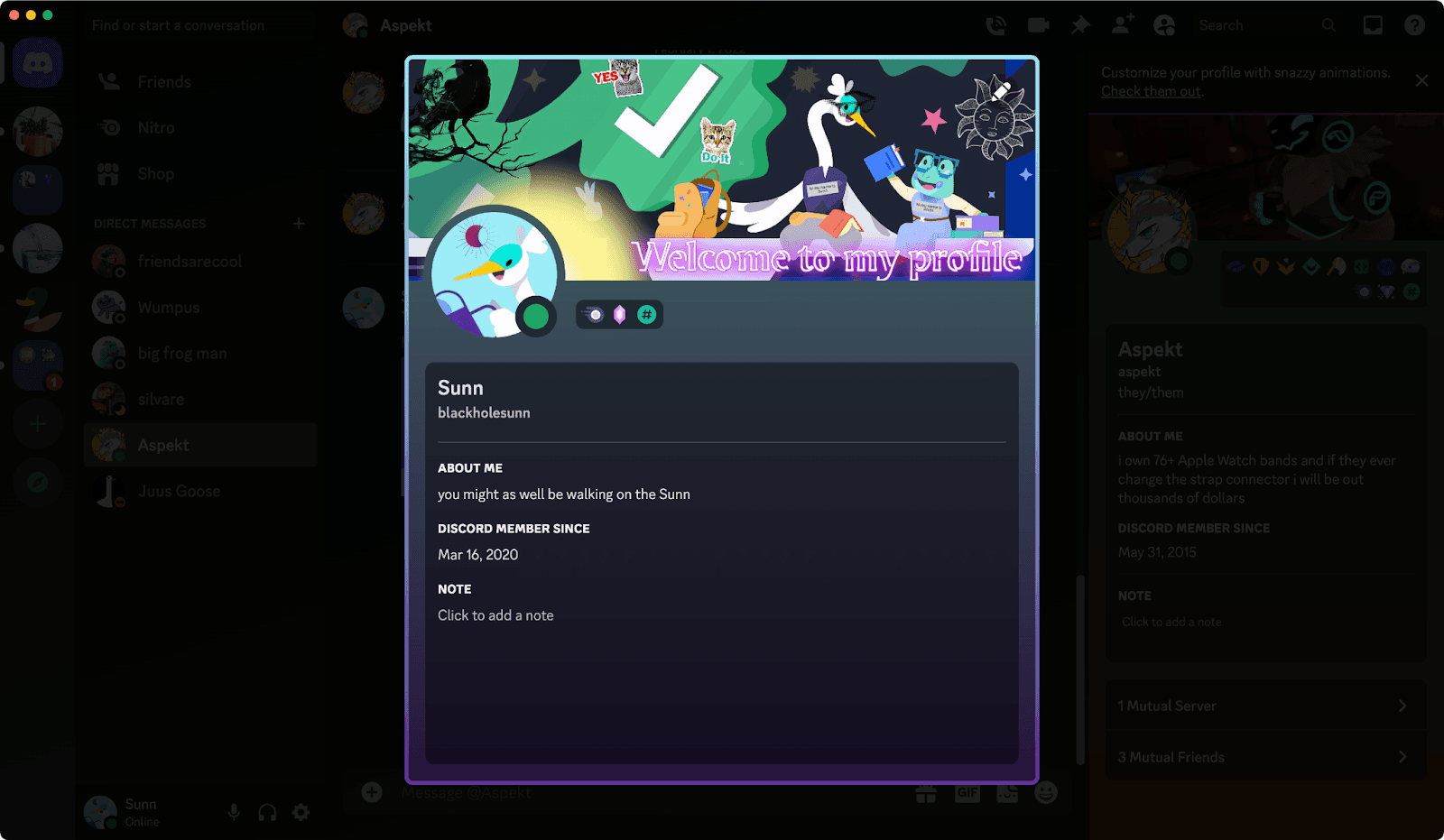
Designing within the safe area means locking a protected region of your banner, where all essential content resides, so that cropping and overlays never compromise meaning. You choose that region deliberately, treat it as the visual priority, and design every variant from that secure center outward.
How Should You Anchor the Composition?
Keep the primary subject and any essential copy inside a clear, centered anchor. Use a fixed focal point, not approximate centering, and build composition layers that slide but do not shift the anchor. Think of the safe area as the stage’s spotlight: anything outside can move or be masked, but what’s in the light must stay legible and unobstructed.
What Belongs Outside the Safe Area?
Small badges, decorative flourishes, fine print, and edge-to-edge textures should be reserved for the outer edges of the design. Place busy patterns and high-frequency details in the peripheral zone, where cropping or compression will have the least impact. Give logos subtle halation or outlines so they remain readable even if the export loses contrast.
How Do You Validate That the Safe Area Works Across Screens?
Use rapid mockups and device previews, but also incorporate automated checks. Export a masked center crop at multiple resolutions, perform contrast tests on text layers, and capture the result on phone and desktop emulators. Capture those checks as artifacts so reviewers can see exact pixel differences, not vague opinions.
The Cost of Ad-Hoc Variants
Most teams still iterate banners by emailing exports and juggling ad-hoc variants, because that workflow initially feels quick. As stakes rise, versions multiply, and you end up reconciling dozens of near-identical files and blind feedback cycles that cost time and consistency.
Platforms like AI Playground centralize the master canvas, produce consistent crops and exports, and tie comments to precise versions, compressing review time while maintaining style integrity.
Which Production Rules Result in the Least Rework?
Work in relative units for type and spacing, lock masks to the anchor, and treat effects as precomposed layers so they flatten predictably at export. For animated banners, animate elements that sit outside the safe area whenever possible, so motion does not disrupt legibility. When legal or brand constraints are in place, create locked overlays for marks so that every export preserves compliance without requiring manual intervention.
Why Consider the Safe Area as a Physical Buffer?
Road design employs explicit margins for a reason: the Texas DOT guide, Designing Within the Safe Area (2025), describes a 15-meter buffer zone as a concrete standard for predictable clearance, and the same discipline applied to digital composition prevents the accidental loss of critical content. That guide also documents tangible outcomes in practice.
For example, Designing Within the Safe Area (2025), achieved a 25% reduction in accidents. This underscores how explicit margins yield measurable improvements, a useful parallel when
protecting branding and legal elements in production assets.
The Infinite AI Creative Canvas
FLORA is the first AI-native creative canvas that unifies text, image, and video generation in one infinite AI playground. Built for professional teams, it replaces the chaos of jumping between tools with a powerful node-based system that gives you complete control over your creative process.
That next step — the moment you actually swap an old banner for a new one — is where the small choices you made about safe areas either pay off or force a day of damage control.
How to Upload or Change Your Discord Banner
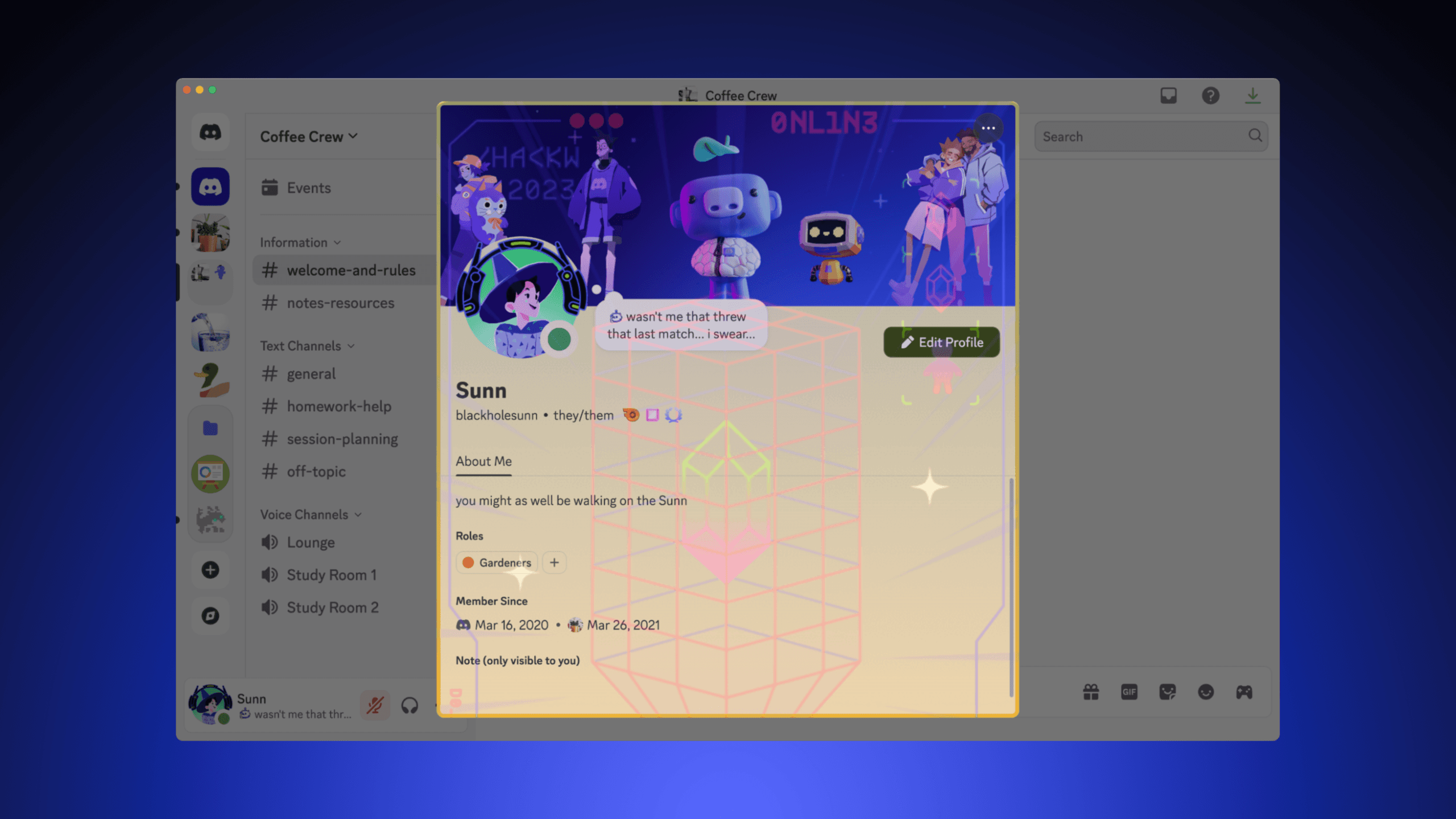
You change your Discord banner from your profile settings on desktop or the web by opening User Settings, selecting Profiles, clicking the banner preview, uploading or picking a GIF, then applying and saving. On mobile, open the You tab, tap "Edit Profile," then select "Change Banner." Select and crop the image, then save it.
Animated banners play only if your account meets Discord’s Nitro requirements; otherwise, you can upload static images.
Why Might the Change Banner Option Be Greyed Out or Fail?
This pattern is consistent across both desktop and mobile: the UI blocks uploads when account or app conditions are not met. Common causes include an outdated app, an unverified account, server-side rate limits, or attempting to upload an animated GIF without Nitro. If the button is inactive, update the app, confirm your email and phone in Settings, then try the web client.
If an upload fails immediately, rename the file using simple ASCII characters and try again, as unusual filename characters can sometimes trigger rejection during the upload process.
How Should You Prepare a File to Ensure Reliable Upload?
To minimize friction, produce one clean master and quick variants with predictable characteristics. Save a flattened static PNG or optimized JPG for still banners. If you need motion, keep GIFs short and straightforward, reducing the frame count and palette to control file size and upload time.
Think of a banner like a jacket; it needs to fit snugly around the shoulders and move with you, not fight against the stitching. Smaller, deliberate motions read clearer and are far less likely to be dropped by the uploader.
The Friction Compounder
Most teams create banner art in scattershot ways, then waste hours reconciling formats and feedback. That familiar approach works at first, but when you must produce multiple variants for campaigns, the friction compounds into days of back-and-forth. Solutions like platforms with a unified multimodal canvas and licensed generation models:
Enable teams to create consistent variants from a single master
Preserve reference-driven style across exports
This reduces the manual export and approval loop from days to hours.
Hard Refresh or Re-Login
What are the quick fixes when your new banner does not display correctly for others?
This problem typically stems from issues with cache and CDN propagation. First, confirm the upload succeeded in your profile view. If it did, have the other person hard refresh their client, or ask them to sign out and sign in.
The Simple Fix Checklist
If many people see the old banner, wait a few minutes while Discord propagates the new asset. Other simple fixes include switching from desktop to the web client, turning off VPNs or proxies that may interfere with uploads, and checking that your file does not use an exotic color profile, which some renderers mishandle.
How Do You Rotate Banners Often or Revert to a Previous One Without Pain?
Discord does not maintain a library of past banners, so you will need to create one externally. Maintain a consistent naming convention and a small reference folder in cloud storage, with desktop and mobile exports labeled by date and purpose. When you need to roll back, retrieve the timestamped file and re-upload it.
Also, add a short, descriptive line in your profile text when a banner represents a campaign or licensing constraint, which provides context to anyone who needs to audit or reuse it later.
What Should You Think About for Rights, Animated Banners, and Commercial Use?
If you rely on generated art or third-party assets, ensure you have confirmed the commercial and redistribution rights before publishing. That constraint matters when you replace banners for brands or community partners. Platforms that include licensed models simplify this process, as they provide a clear usage pathway while centralizing version control.
For animations, remember that playback behavior varies by client and device, so test GIFs on both desktop and mobile before announcing a change. The frustrating part? Changing a banner is simple, until the little technical and legal details start stealing hours from your day.
Tips for Designing an Eye-Catching Discord Banner
An eye-catching Discord banner comes down to three things: a single clear focal point, readable typography against reliable contrast, and a workflow that produces consistent variants quickly. Get those right and the banner reads at a glance; miss one and the design becomes noise on small screens.
What Should Carry the Visual Weight?
Treat the banner like a movie poster, where one subject anchors everything else. Make that subject larger than life, isolate it with deliberate negative space, and use depth cues such as a soft foreground blur or subtle shadow to separate it from the background. Keep secondary elements small, desaturated, or positioned at the edges to prevent them from competing for attention.
A single strong silhouette reads faster than several busy figures crammed into the same slice of pixels.
How Do I Choose Colors That Still Work for Everyone?
Prioritize contrast first, style second. Pick a dominant hue for mood, then add a high-contrast accent for callouts and badges. Use semi-opaque overlay bands under text to guarantee legibility without flattening the image. Run quick colorblind and contrast checks before finalizing a palette, as accessible choices reduce rework and legal risk when the asset goes public.
If I Animate, What Rules Keep Motion from Distracting?
Limit animation to slow, purposeful movement and time transitions that align with human perception, with durations of around 200 to 400 milliseconds for a single micro-interaction and 8 to 12 frames per second for subtle looping motion.
Animate peripheral or decorative elements rather than core type or the primary subject, and always ease in and out to avoid jarring starts.
Reduce frame counts and utilize palette optimization during export to maintain a manageable file size while preserving perceived smoothness.
The Fragmented Iteration Trap
Most teams handle iterations by sending static files through chat because that workflow is
familiar and requires no new tools. As projects scale, feedback splinters across channels, version names diverge, and designers spend disproportionate time reconciling which variant is authoritative.
Platforms like AI playground centralize the master canvas, preserve a reference-driven style across exports, and enable teams to iterate in real-time, compressing review cycles from days to hours while maintaining a complete audit trail.
How Should I Validate a Banner Before It Goes Live?
Run two quick, objective checks with five to ten people: one where they view the banner on both phone and desktop and identify the central message, and another where they scan for legibility and brand cues within five seconds. If at least 80% of the participants identify the message and no test fails basic contrast checks, you can proceed to production.
Capture those sessions so stakeholders can see exactly what changed between rounds, not just abstract feedback.
What Export Rules Save Time at Scale?
When you need multiple placements, lock a high-fidelity master and automate exports to exact delivery sizes so you never design by guesswork. For profile displays, a Discord profile banner should be 600 x 240 pixels. For invite screens, Discord invite banners are best at 1920x1080 pixels.
Name each export with purpose and date, lock your brand marks as immutable layers, and store a small manifest that maps each file to its target placement.
How Do I Maintain Consistent Quality Across Campaigns?
Adopt a production habit: one master, locked tokens for logo and color, export presets, and a concise checklist for each release that includes device preview, contrast pass, file-size cap, and proper legal clearance. That checklist reduces last-minute scrambles and prevents minor errors from escalating into major mistakes. Think of it as a preflight routine, the same safety steps pilots run before every takeoff.
Creative Control, Zero Tool-Hopping
FLORA is the first AI-native creative canvas that unifies text, image, and video generation in one infinite AI playground. Built for professional teams, it replaces tool-hopping with a node-based system that lets you lock style, iterate in real time, and produce consistent banner variants without losing control.
That feels solved, until the choice of tool quietly determines whether your banner scales or unravels.
Related Reading
4 Tools to Create the Perfect Discord Banner
These four tools encompass the full spectrum of practical banner production, ranging from rapid template edits to complete production-grade iteration and collaboration. Choose Fotor or Canva when you need speed and low friction. Use Adobe Spark when you want advanced controls and discrete watermarking. Opt for Flora AI when you require a single canvas that preserves style, generates variants, and supports team review at scale.
1. Flora AI
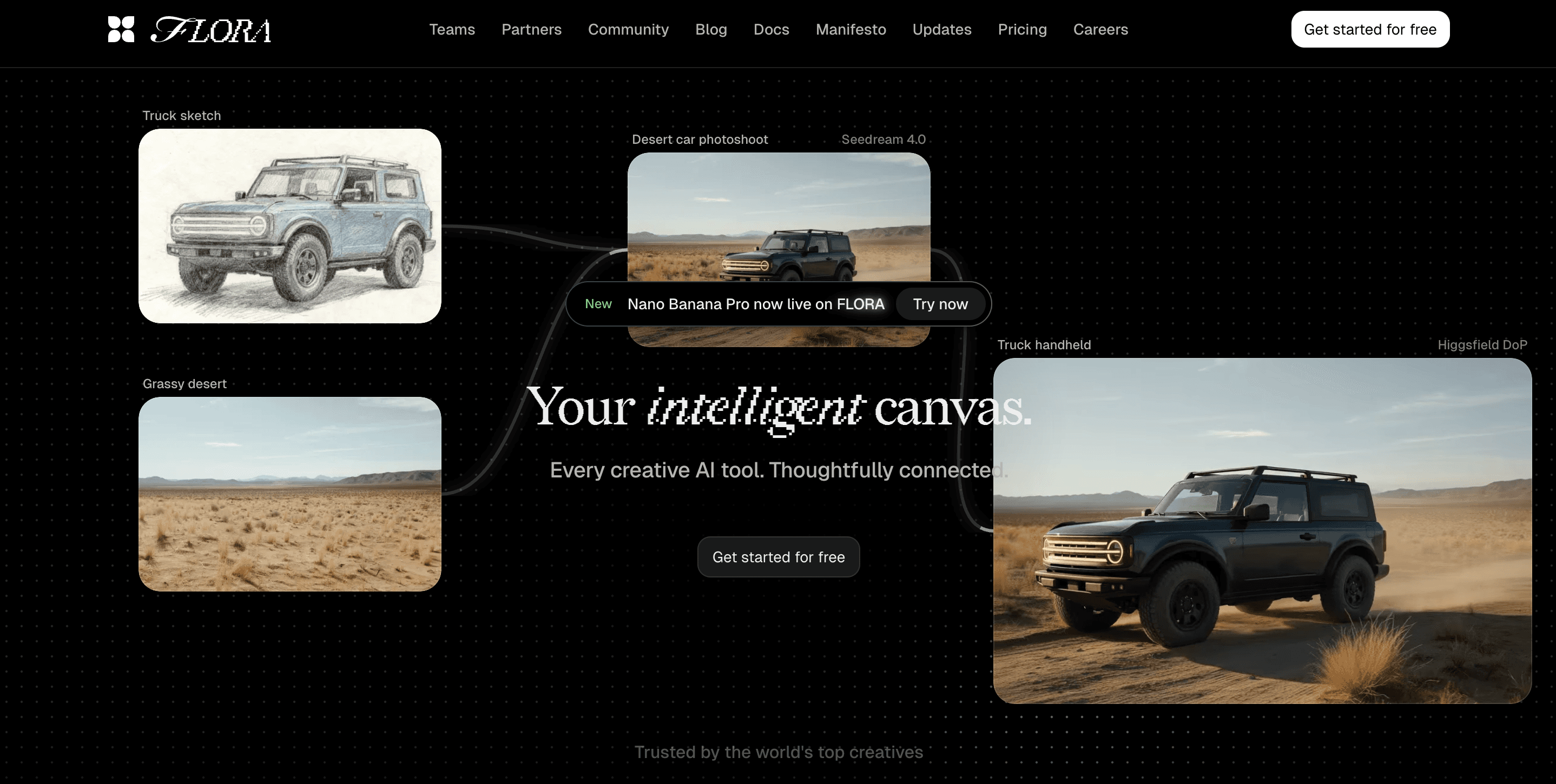
Flora AI, a node-based, AI-native creative canvas, is designed for teams that need repeatable, on-brand production. Use it when you need to maintain a single source of truth while producing multiple size variants and motion options from a single concept.
The node graph enforces discipline, ensuring that your layout, color tokens, and logo overlays remain consistent and behave predictably as you export to multiple targets. For example, you can attach a linked color token to every text layer, tweak the token once, and have every export update without manual searches and replacements.
Flora AI also supports real-time collaboration on the same canvas, allowing reviewers to comment on a frame, designers to iterate in place, and eliminating version drift.
When to Choose It
Large communities, brand-led servers, or marketing teams that deliver regular campaigns and can benefit from automation, reference-based style preservation, and licensed model access. The tradeoff is a modest learning curve around nodes, which pays back as projects scale.
Production Tips
Build a master composition with locked brand layers, create export presets for your common banner usages, and use the node graph to branch animated and static outputs without duplicating work. Flora AI’s generation models can produce quick concept boards, which can then be refined within the same file, maintaining consistent performance across desktop and mobile variants.
2. Fotor
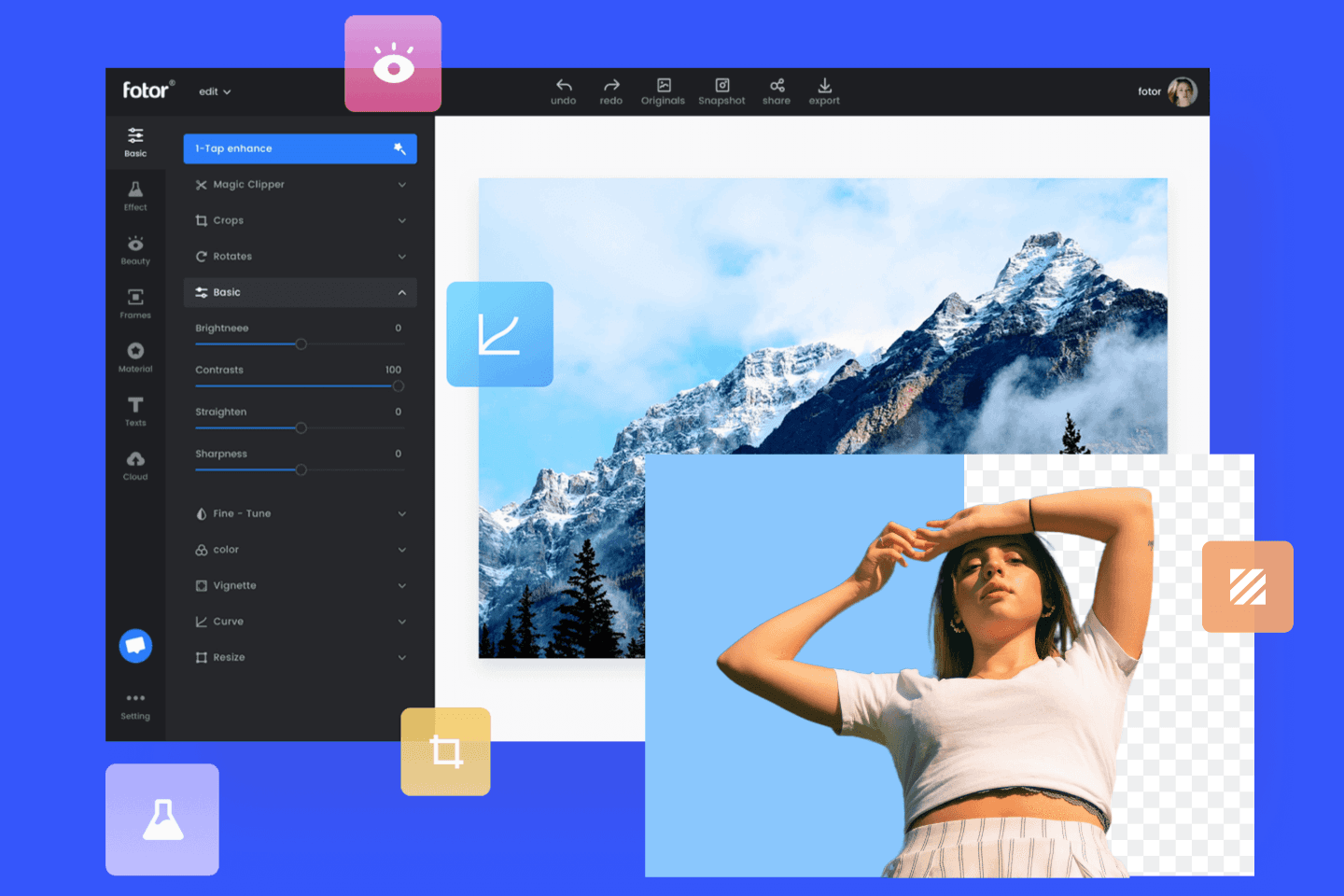
Fotor is the fast, low-friction option when you need a clean banner quickly. Templates make swapping images and copy instant, and the interface minimizes clicks so non-designers can ship. It is ideal for last-minute event headers or hobby servers where speed matters more than strict brand governance.
When to Choose It
Solo moderators, small communities, or side projects that need something attractive without a learning curve. Expect limits: advanced masking, complex motion, or precise version control will feel constrained.
Production Tips
Start from a template, replace the hero art with a flattened PNG, and then export an optimized JPG. Maintain an external manifest for versioning, as Fotor does not replace a centralized asset system.
3. Canva
Canva wins on accessibility and predictable resizing. This pattern appears across indie creators and small agencies: Canva’s automatic resize and drag-and-drop controls shave hours from variant production, especially when team members lack formal design training. Use it when you need rapid prototypes that look polished and can be handed off to moderators or communications teams without extra steps.
When to Choose It
Mixed-skill teams, community managers, and solo creators who value speed and a gentle learning curve. The tradeoff is less fine-grained control over animation frames and a higher chance of inconsistent styling unless you lock brand elements in templates.
Production Tips
Create a branded template with a locked logo and color swatches, and then utilize the resize feature to generate alternate crops. Export a high-quality PNG for graphics and an optimized JPG for photographic backgrounds. Keep a short notes layer in the file that indicates which export to use for each placement.
4. Adobe Spark
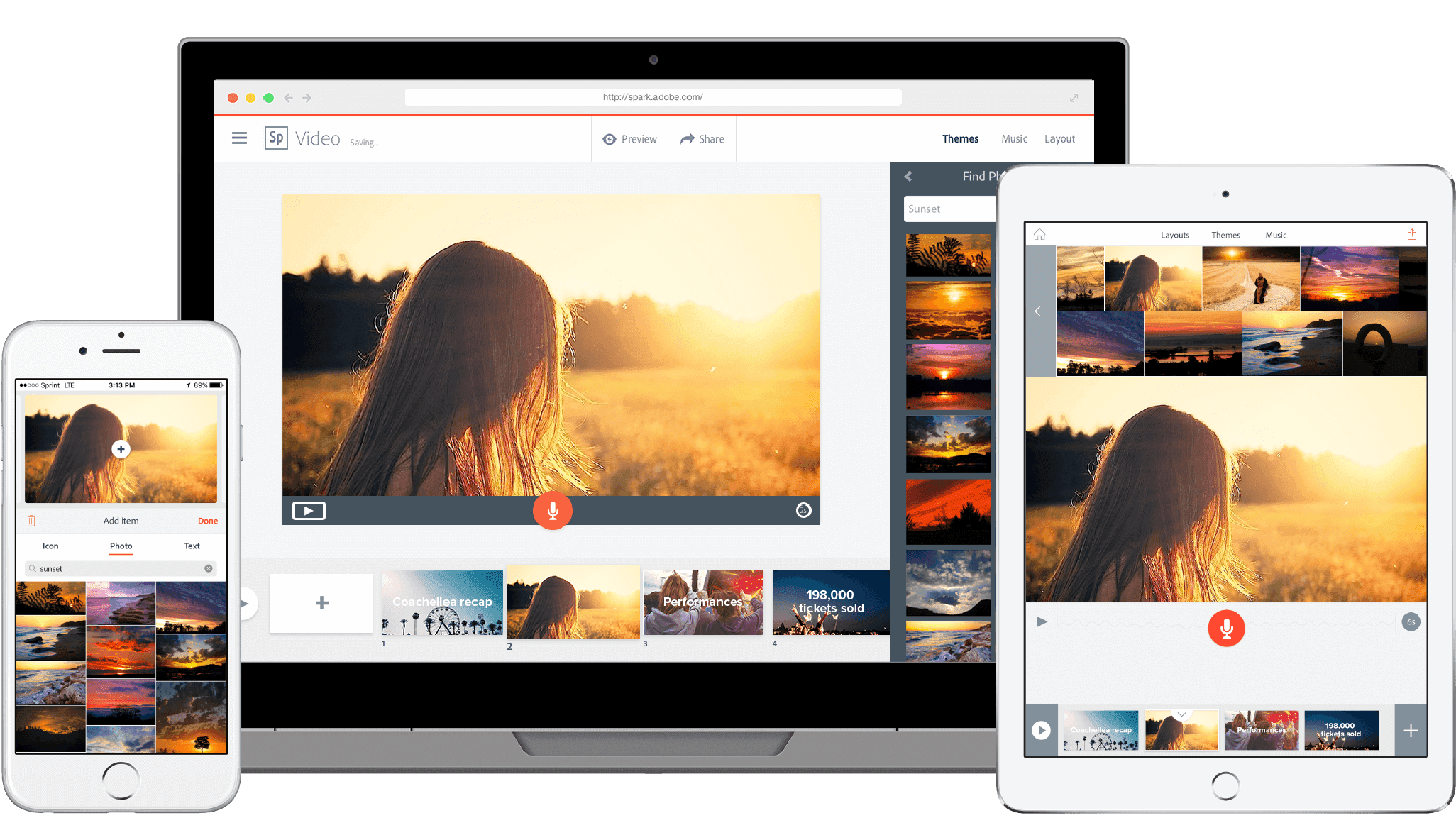
Adobe Spark is the right pick when you need more design control but still want approachable tooling. It offers sophisticated typographic controls, subtle motion options, and export fidelity that stands up under scrutiny. Free downloads include a watermark, but it is typically small and unobtrusive, making Spark practical for non-commercial or internal use.
When to Choose It
Designers who are comfortable with Adobe’s thinking and who need more control than Canva or Fotor provides, but who do not require a complete Photoshop workflow. The main downside is the watermark on free outputs and fewer collaboration features compared with dedicated production platforms.
Production Tips
Use Spark for high-quality typographic treatments and export an unwatermarked file via a paid plan when publishing publicly. For animated pieces, keep motion minimal and test playback across clients.
Fragmented Feedback
Most teams handle review and versioning via email and chat because it feels familiar and requires no new setup. That works at first, but as stakeholders multiply and deadlines compress, feedback fragments across threads, decisions stall, and designers spend hours reconciling which edits were approved.
Platforms like Flora AI centralize comments on the canvas, automate consistent exports, and compress review cycles from days to hours while keeping an audit trail.
A Practical Workflow You Can Adopt Now
Start with role-based tasks, not tools. For a typical two-week production sprint I recommend this sequence:
Concept board and locked brand tokens.
Single master composition that anchors the safe area.
Automated presets for desktop, mobile, and social.
One review pass in the canvas with inline comments.
Final exports with embedded metadata. This sequence keeps intent and assets tied together, so you do not end up re-scaling and re-typing the same headline five times.
Rights, Licensing, and Scale
When projects move from hobby to commercial use, licensing becomes urgent. Platforms that include licensed generation models simplify clearance because they provide clear usage terms and reduce legal friction during scaling. Keep a manifest that records model IDs, prompt strings, and export dates for any generated art, so audits are straightforward and rework is avoidable.
Testing and QA That Actually Works
Treat banner QA like a short usability test, not an aesthetic critique. Run a five-person scan test where each viewer names the primary message within five seconds on phone and desktop. Record the session and maintain a pass/fail checklist, including:
Message identification
Contrast
Logo visibility
File integrity
If two items fail, iterate and release only after. This quick loop prevents embarrassing drops and last-minute rollbacks.
Why the Tool Choice Matters More Than You Think
With over 150 million monthly active users on Discord, as noted by Quartz, small mistakes become widely visible fast. And with millions of active servers each week, according to Analyzify’s Discord Statistics Report, consistent production practices separate polished communities from noisy ones. Choosing the right tool is not just about ease—it’s about preserving clarity as reach grows.
You think this is the end of the checklist, but the next step reveals the subtle constraint that still trips teams up.
Try FLORA's AI-native Creative Canvas for Free Today
When we audited creative workflows across multiple teams, the pattern was clear: model integrations often failed to apply brand kits reliably, and that predictable friction turned quick concept rounds into hours of manual fixes. To eliminate those bottlenecks and accelerate output, try FLORA’s AI playground for free.



"/><stop offset="1" stop-color="rgba(15, 15, 15, 0)"/></linearGradient></defs><path d="M 899.729 124.429 L 931.177 124.429 L 931.177 108.467 L 946.905 108.467 L 946.905 44.616 L 884.001 44.616 L 884.001 92.504 L 868.274 92.504 L 868.274 124.429 L 852.554 124.429 L 852.554 140.392 L 836.826 140.392 L 836.826 156.355 L 852.554 156.355 L 852.554 172.317 L 836.826 172.317 L 836.826 204.242 L 821.098 204.242 L 821.098 236.168 L 852.554 236.168 L 852.554 252.129 L 758.2 252.129 L 758.2 236.167 L 789.65 236.167 L 789.65 204.241 L 805.378 204.241 L 805.378 172.316 L 821.098 172.316 L 821.098 124.428 L 836.826 124.428 L 836.826 92.504 L 852.554 92.504 L 852.554 44.616 L 836.826 44.616 L 836.826 28.654 L 962.625 28.654 L 962.625 44.616 L 978.353 44.616 L 978.353 60.579 L 994.081 60.579 L 994.081 76.541 L 978.353 76.541 L 978.353 124.429 L 946.905 124.429 L 946.905 140.392 L 931.177 140.392 L 931.177 156.355 L 946.905 156.355 L 946.905 236.168 L 978.417 236.168 L 978.417 220.205 L 994.145 220.205 L 994.145 204.242 L 1009.865 204.242 L 1009.865 188.28 L 1025.593 188.28 L 1025.593 204.242 L 1009.865 204.242 L 1009.865 220.205 L 994.145 220.205 L 994.145 236.168 L 1025.593 236.168 L 1025.593 252.13 L 915.449 252.13 L 915.449 156.355 L 899.729 156.355 Z M 1135.672 172.317 L 1119.944 172.317 L 1119.944 76.541 L 1104.216 76.541 L 1104.216 92.504 L 1088.496 92.504 L 1088.496 108.467 L 1072.768 108.467 L 1072.768 92.504 L 1088.496 92.504 L 1088.496 76.541 L 1104.216 76.541 L 1104.216 60.579 L 1119.944 60.579 L 1119.944 28.654 L 1135.672 28.654 L 1135.672 60.579 L 1151.392 60.579 L 1151.392 236.168 L 1167.12 236.168 L 1167.12 252.13 L 1104.216 252.13 L 1104.216 236.168 L 1119.944 236.168 L 1119.944 188.28 L 1135.672 188.28 Z M 1072.768 124.429 L 1072.768 140.392 L 1057.041 140.392 L 1057.041 156.355 L 1041.321 156.355 L 1041.321 172.317 L 1025.593 172.317 L 1025.593 156.355 L 1041.321 156.355 L 1041.321 140.392 L 1057.041 140.392 L 1057.041 124.429 Z M 176.61 25.988 C 124.406 25.988 78.864 38.954 68.867 80.108 C 64.424 102.095 70.533 130.282 105.522 145.504 C 107.678 146.379 109.332 146.83 110.516 147.152 C 112.382 147.661 113.082 147.852 112.742 148.886 C 112.186 150.577 106.633 150.014 102.19 148.323 C 69.424 136.484 51.65 107.168 54.983 77.289 C 60.536 35.572 109.966 -1.636 179.387 0.056 C 202.713 0.056 238.812 5.692 273.246 15.276 C 293.795 20.914 321.009 28.243 346.555 34.444 C 369.881 24.86 392.096 18.659 411.534 18.659 C 425.628 18.659 438.846 21.919 444.414 28.654 L 537.86 28.654 L 537.86 44.616 L 506.41 44.616 L 506.41 60.579 L 490.685 60.579 L 490.685 92.504 L 474.959 92.504 L 474.959 124.429 L 459.233 124.429 L 459.233 172.317 L 443.508 172.317 L 443.508 220.205 L 427.783 220.205 L 427.783 236.168 L 522.135 236.168 L 522.135 220.205 L 537.86 220.205 L 537.86 204.242 L 553.586 204.242 L 553.586 172.317 L 569.311 172.317 L 569.311 204.242 L 553.586 204.242 L 553.586 236.168 L 537.86 236.168 L 537.86 252.13 L 364.881 252.13 L 364.881 236.168 L 396.332 236.168 L 396.332 220.205 L 412.058 220.205 L 412.058 172.317 L 427.783 172.317 L 427.783 140.392 L 443.508 140.392 L 443.508 92.504 L 459.234 92.504 L 459.234 44.616 L 444.157 44.616 C 437.338 52.415 419.206 55.303 394.318 55.303 C 379.323 55.303 357.108 53.048 349.333 51.92 C 337.67 63.196 325.452 77.853 314.9 90.82 C 305.307 102.032 297.996 111.856 290.818 121.501 C 284.281 130.284 277.855 138.919 269.914 148.323 C 283.798 148.886 298.794 147.759 309.901 143.812 C 320.454 129.155 333.783 122.39 342.669 124.645 C 351.554 126.9 350.444 135.92 337.67 145.504 C 335.4 147.26 333.256 148.887 331.193 150.453 C 322.659 156.932 315.515 162.356 306.569 171.436 C 304.66 173.374 302.994 175.312 301.571 176.968 C 299.269 179.646 297.602 181.584 296.572 181.584 C 293.24 182.148 294.351 172 296.572 166.363 C 299.349 159.597 302.126 154.524 304.903 150.577 C 295.462 153.396 284.91 154.524 266.026 154.524 C 264.938 155.812 263.791 157.222 262.545 158.751 C 259.978 161.904 256.993 165.569 253.253 169.745 C 204.381 225.557 123.85 256 71.645 256 C 29.993 256 0 239.087 0 212.591 C 0 193.987 12.774 175.947 34.99 175.947 C 53.317 175.947 61.092 188.349 60.537 200.188 C 59.981 208.644 57.204 213.718 51.651 219.92 C 47.763 224.429 44.431 228.376 44.431 234.013 C 44.431 243.597 52.762 249.798 68.867 250.362 C 111.631 253.181 142.177 234.013 176.61 195.678 C 190.494 180.456 200.491 168.054 210.488 153.96 C 198.27 153.96 186.607 153.96 179.943 154.524 C 172.902 154.799 168.37 155.744 165.639 156.313 C 162.768 156.912 161.886 157.096 162.17 155.652 C 162.726 153.396 167.724 149.45 184.385 148.323 C 188.537 147.94 196.791 148.077 204.443 148.204 C 208.052 148.264 211.528 148.323 214.375 148.323 C 222.151 137.611 231.037 125.772 242.7 113.37 C 264.915 89.128 294.35 65.451 323.23 47.411 C 307.124 45.719 281.021 40.645 263.804 37.263 C 239.923 32.753 203.268 25.988 177.166 25.988 L 176.61 25.988 Z M 365.438 39.518 C 386.542 45.156 403.204 46.847 413.2 46.847 C 427.64 46.847 440.969 42.336 441.524 36.136 C 442.08 29.37 428.751 24.296 410.979 24.296 L 410.423 24.296 C 394.317 24.296 375.435 32.753 365.438 39.518 Z M 711.023 252.129 L 616.672 252.129 L 616.672 236.167 L 600.946 236.167 L 600.946 220.204 L 585.221 220.204 L 585.221 108.466 L 600.946 108.466 L 600.946 76.54 L 616.672 76.54 L 616.672 60.578 L 632.396 60.578 L 632.396 44.616 L 663.847 44.616 L 663.847 28.654 L 758.2 28.654 L 758.2 44.616 L 773.924 44.616 L 773.924 60.579 L 789.65 60.579 L 789.65 172.317 L 773.924 172.317 L 773.924 188.28 L 758.2 188.28 L 758.2 220.205 L 742.474 220.205 L 742.474 236.168 L 711.023 236.168 Z M 663.847 44.616 L 663.847 60.579 L 648.122 60.579 L 648.122 76.541 L 632.396 76.541 L 632.396 108.467 L 616.672 108.467 L 616.672 220.205 L 632.396 220.205 L 632.396 236.168 L 695.298 236.168 L 695.298 220.205 L 711.023 220.205 L 711.023 204.242 L 726.749 204.242 L 726.749 188.28 L 742.474 188.28 L 742.474 156.355 L 758.2 156.355 L 758.2 60.579 L 742.474 60.579 L 742.474 44.616 Z" fill="url(%23k7ftP17bN-2050371890-linear-gradient)" height="255.9995555606772px" id="k7ftP17bN" width="1167.1199228535695px"/></svg>)