Nov 17, 2025

FLORA

You upload a new header for your artist page, and it comes out cropped or blurry, because the wrong banner size can erase hours of work. Getting the Spotify banner dimensions, aspect ratio, and image resolution right ensures that your profile, playlist, and album art appear sharp on both phones and desktops. This article provides the best pixel sizes, file format tips, and quick design rules to help you master the Spotify banner size and receive design tips for eye-catching banners. Want a banner that stops a scroller and reads well at every size?
Flora AI's AI playground helps you mock up and preview banners at actual pixel sizes, allowing you to see how a cover image will display before you upload it. It offers templates, simple layout suggestions, and quick tests to refine your Spotify banner size and design choices.
Table of Contents
The Standard Spotify Banner Size
5 Tips for Designing a High-Impact Spotify Banner
5 Best Tools to Create Spotify Banners
How to Upload or Change Your Spotify Banner
Try FLORA's AI-native Creative Canvas for Free Today
Summary
Set your master canvas to 2660 by 1140 pixels, the 16:9 aspect ratio Spotify expects, to avoid pixelation and unexpected stretching across desktop, mobile, and web players.
Export in sRGB with 24-bit color, use JPG or PNG for predictable results, and target 72 DPI for a balance between on-screen sharpness and manageable file size.
Keep logos, faces, and headlines inside the middle 75 percent safe zone, and simulate narrow mobile and web crops before finalizing to ensure critical elements are never trimmed.
Account for hosting limits, since some upload forms enforce a 2 MB maximum file size, which requires perceptual compression and prioritizing a high-quality center crop when necessary.
Manual one-off resizing fragments assets as campaigns scale, often turning what begins as hours into days when teams must produce dozens of size or style variants.
Apply the article's five practical tips, including preparing 640x640 pixel square variants for previews, maintaining layered masters, and documenting licenses, to reduce rework and legal risk.
Flora AI's AI playground addresses this by allowing teams to mock up and preview banners at actual pixel sizes, run safe-zone checks, and automate bulk, style-preserving exports.
The Standard Spotify Banner Size
Spotify’s standard banner is 2660 by 1140 pixels, set to a 16:9 aspect ratio so the image reads cleanly across desktop, mobile, and the web player. Use that as your master canvas so you avoid pixelation and unexpected stretching when platforms apply different crops.
What Export Settings Should I Use for Crisp, Web-Ready Banners?
Export in sRGB, 24-bit colour, and keep file formats to JPG or PNG for predictable results. For web efficiency, set your raster export to 72 DPI, which helps balance on-screen sharpness with smaller file sizes during rapid iteration. Also, keep layered source files at a higher resolution so you can re-export variants without quality loss.
How Should I Plan the Safe Zone and Composition So Key Content Survives Every Crop?
Center your logo, face, or headline inside the middle 75 percent of the canvas, and treat edges as peripheral texture only. Think of the banner like a theatre stage, the crucial elements under the spotlight in the center, while scenery bleeds off the sides. Before finalizing, simulate mobile and narrow web crops to confirm nothing vital will be trimmed.
The Drag of Manual Asset Scaling
Most teams handle scaling by manually resizing and re-exporting one-off files because it feels straightforward and requires no new workflow. That familiar approach works at first, but as release schedules tighten and versions multiply, the manual method fragments assets, introduces subtle inconsistencies in spacing and colour, and stretches delivery from hours into days.
How Can Teams Avoid That Hidden Cost Without Adding Complexity?
Platforms like FLORA provide an intelligent canvas that links a single brief to automated resize models, style-preserving transforms, and bulk export rules, allowing teams to produce Spotify-ready variants consistently while dramatically reducing iteration time. These solutions maintain brand tokens across sizes, automate safe-zone checks, and export batches to the required formats, reducing the usual back-and-forth between design and engineering.
What Technical Limits Should I Watch for When Uploading?
Some hosting tools or third-party upload forms require smaller payloads, so be aware of the 2 MB maximum file size, which can lead to extra compression and quality trade-offs if not managed properly. When you must target strict limits, prioritize a high-quality center crop, compress with perceptual settings, and keep an uncompressed master for future exports.
Quick Export Checklist
If you want a quick mental checklist before export, confirm the master is 2660 by 1140 px, central content sits within a 75 percent safe zone, colour is sRGB, and you have both a layered source and a web-optimized export ready. But the small design choices that feel optional now can decide whether listeners click or scroll past, and that gap is harder to fix than you think.
Related Reading
5 Tips for Designing a High-Impact Spotify Banner
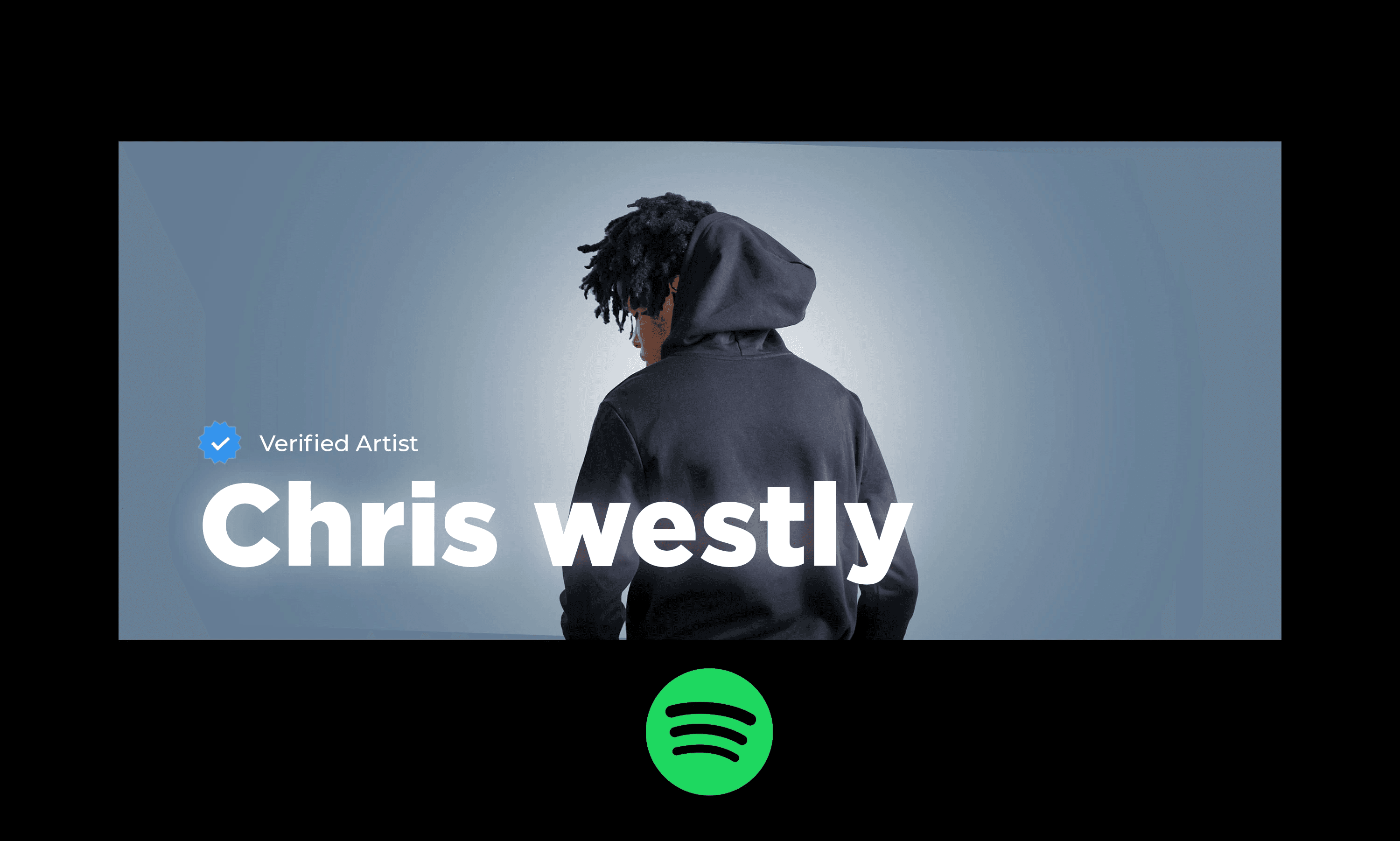
These five tips are the practical moves you need to turn a Spotify banner from an afterthought into a consistent brand asset that converts listeners into fans. Follow them as a checklist, and build a repeatable process so a single brief produces on-brand variants quickly and predictably.
1. Brand Consistency Across Platforms
Create a single source of truth for color, type, and logo use so every banner is a deliberate extension of the same identity. Treat colors as tokens with hex codes, lock down logo spacing and clearspace rules, and save approved font stacks for headlines and body text. Name and version your master files consistently so exports stay traceable across releases. When teams connect these tokens into templates or an intelligent canvas, they avoid ad-hoc tweaks that create subtle drift between Spotify, Instagram, and web placements.
2. Color Choices That Complement Cover Art
Choose palettes that let cover art lead, then support it with secondary accents and controlled overlays. Use a low-opacity gradient or single-color overlay to unify a busy photo without muting the release art, and test each option against the actual album thumbnails that sit below the banner. For tight promo crops, prepare square assets sized for standard preview slots such as [640 pixels wide by 640 pixels tall](https://musosoup.com/blog/spotify-banner-size), so you can export one variant that fits both profile previews and social promos without reshooting imagery.
3. Ensuring Readability When Including Text
Only add text when it changes listener behavior, such as a release date, a short tour line, or an unmistakable artist mark. Keep headlines bold and concise, follow the rule of a readable scale at thumbnail size, and add a subtle stroke or high-contrast background to maintain legibility on patterned backgrounds. Use the center area for any essential copy and run quick pixel-level previews on several phones to confirm clarity. Then, keep a typed checklist of every export’s font size, color, and placement so that nothing slips during batch exports.
4. Using High-Resolution Imagery to Avoid Pixelation
Pick source files where the subject remains sharp after heavy cropping, and save layered masters so you can recompose without quality loss. Vector logos and layered PSDs provide the flexibility to retime or recolor elements cleanly, while shooting or sourcing images with more headroom around the subject prevents awkward cropping. When compressing for delivery, prioritize the focal region, reduce chroma subsampling conservatively, and maintain an archive of uncompressed masters for future remasters.
5. Copyright, Branding, and Content Restrictions
Secure the right to use every element you publish, document licenses, and require model releases for identifiable people. Trademarks and protected brand marks require written permission to avoid takedown notices and legal exposure. You should maintain a versioned ledger that ties each banner to its corresponding license files and approval timestamps.
Clear Licensing Over Manual Creation
When in doubt, swap to original artwork or licensed stock with clear commercial terms to avoid disputes that can derail a campaign. Most teams handle variant creation manually because it is familiar and requires no new tools, which works at first. As release schedules compress and the number of stakeholders increases, one-off resizing and manual approvals fragment assets, extending delivery timelines from hours to days. Platforms like AI playground centralize templates, tokenize brand assets, and automate style-preserving resizes, letting teams compress iterative cycles while keeping a full audit trail and consistent exports.
Unified AI Creative Canvas
FLORA is the first AI-native creative canvas that unifies text, image, and video generation in one infinite AI playground. Built for professional teams, it replaces the chaos of jumping between tools with a powerful, node-based system that gives you complete control over your creative process. Try FLORA's AI playground for free today!
Related Reading
5 Best Tools to Create Spotify Banners
1. Flora AI
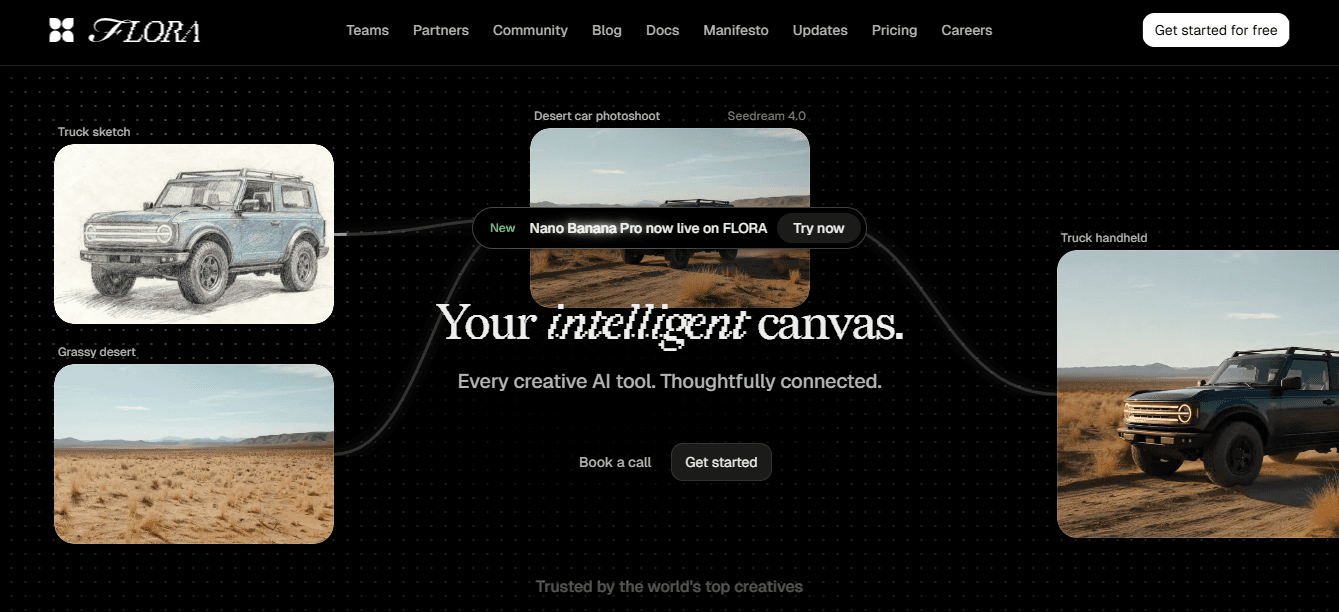
FLORA is the only tool here built around a node-based, multi-model canvas that links a single creative brief to repeatable, size-optimized outputs. It suits teams that require more than one-off images, as it treats a banner as a living asset that can be transformed programmatically across various sizes and styles.
Strengths: True generative pipelines for text, image, and short video, real-time collaboration like a design whiteboard, and automation hooks for bulk export. Expect a steeper ramp for solo creators, as the node model rewards deliberate workflows. When teams invest a few hours upfront to map their brand tokens and export rules, iteration speed and consistency improve dramatically.
2. Canva
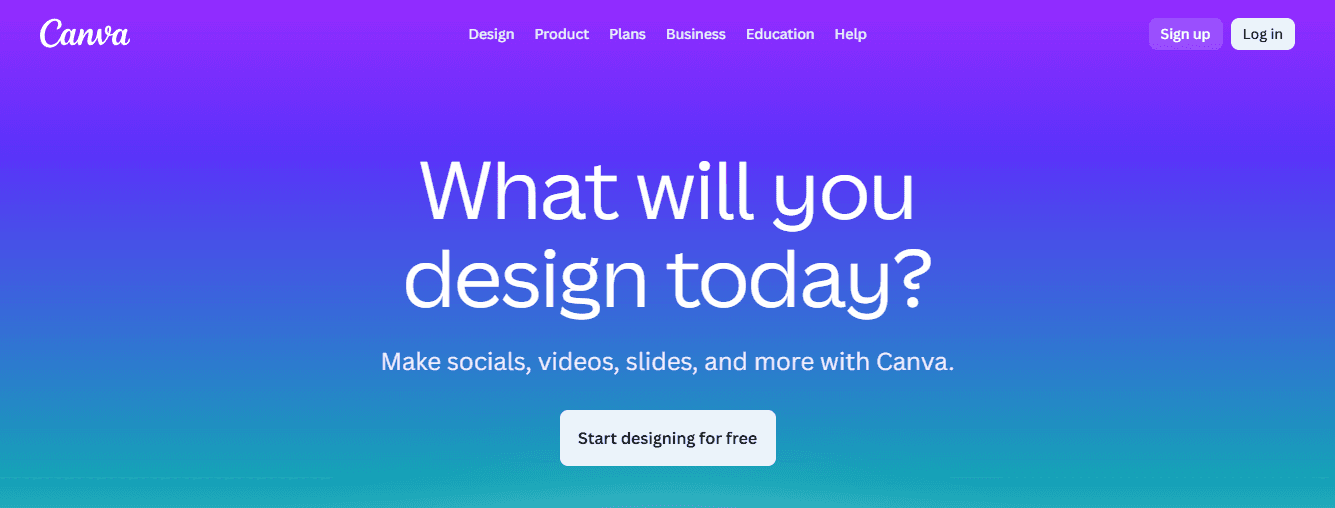
Canva remains the go-to when you need low-friction, template-driven production and wide contributor access.
Strengths: Vast template library, drag-and-drop editing, rich font and stock assets, and simple team sharing. It works best when non-designers must ship polished covers quickly, yet it can feel overwhelming once you try to enforce strict brand tokens across hundreds of variants.
A practical tip: lock a small set of approved templates and export presets so contributors cannot accidentally shift type or spacing during batch work.
3. Snappa
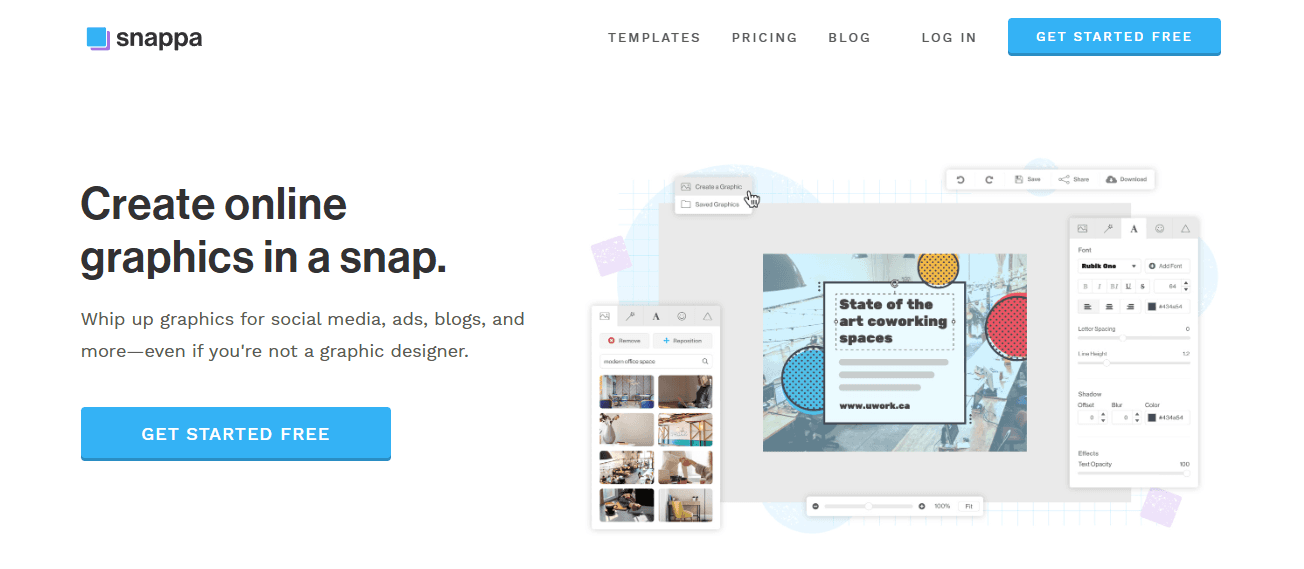
Snappa prioritizes speed and predictability. If you are producing dozens of playlist covers for social promos or rotating playlists, its pre-sized templates and lightweight editor keep cycle time low.
Strengths: Quick templates, background removal, and royalty-free images that let you crank out assets without deep design skills.
Tradeoff: You give up advanced compositing and fine-grained control, so Snappa is ideal when throughput matters more than pixel-perfect craft.
Most teams handle multi-variant production by bouncing between tools and manual resizing, which feels familiar and low-cost at first. That approach works until stakeholder counts rise and small inconsistencies begin to compound, wasting time reconciling color shifts and layout drift.
Centralized Brand Consistency and Automation
Platforms like FLORA provide a different path, centralizing brand tokens, automated resize models, and bulk export so teams can reduce back-and-forth and maintain consistent style across every Spotify-ready variant.
4. Fotor
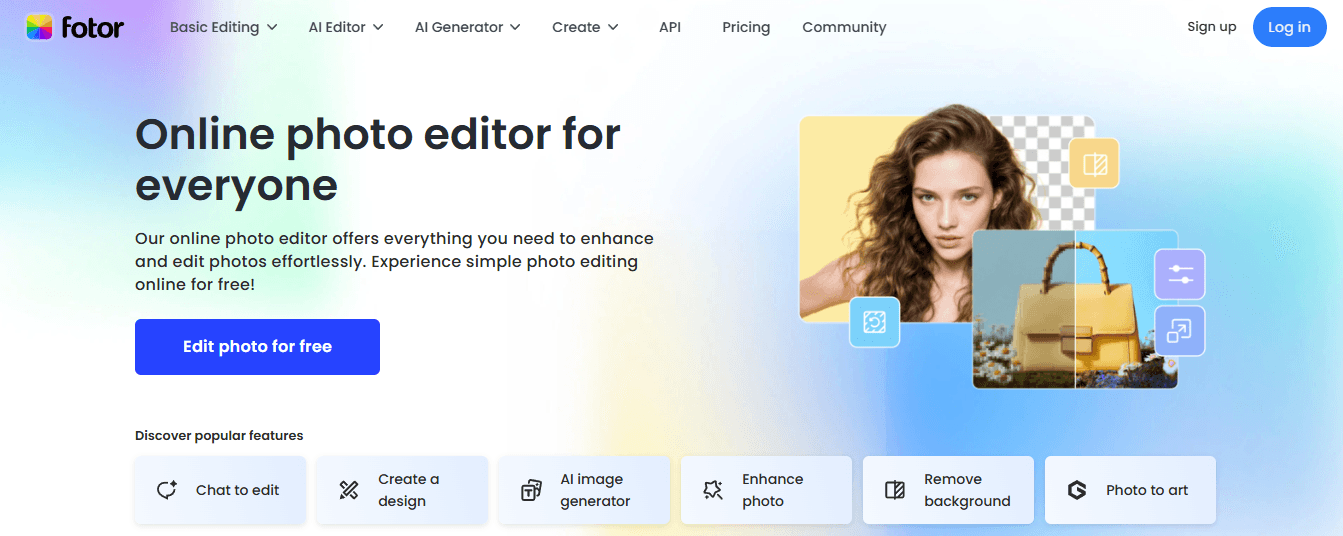
Fotor earns its keep when photography is the centerpiece. Its photo-editing suite and collage features let you correct, stylize, and retouch images before anchoring them into a banner.
Strengths: Strong filters, selective adjustments, and intuitive background removal. If your covers lean on portraits or live shots, Fotor lets you rescue challenging exposures and create cohesive looks without switching to a heavier editor. Be mindful that it is not a full vector/branding system, so save master layered files elsewhere if you expect to change layouts later.
5. Adobe Express
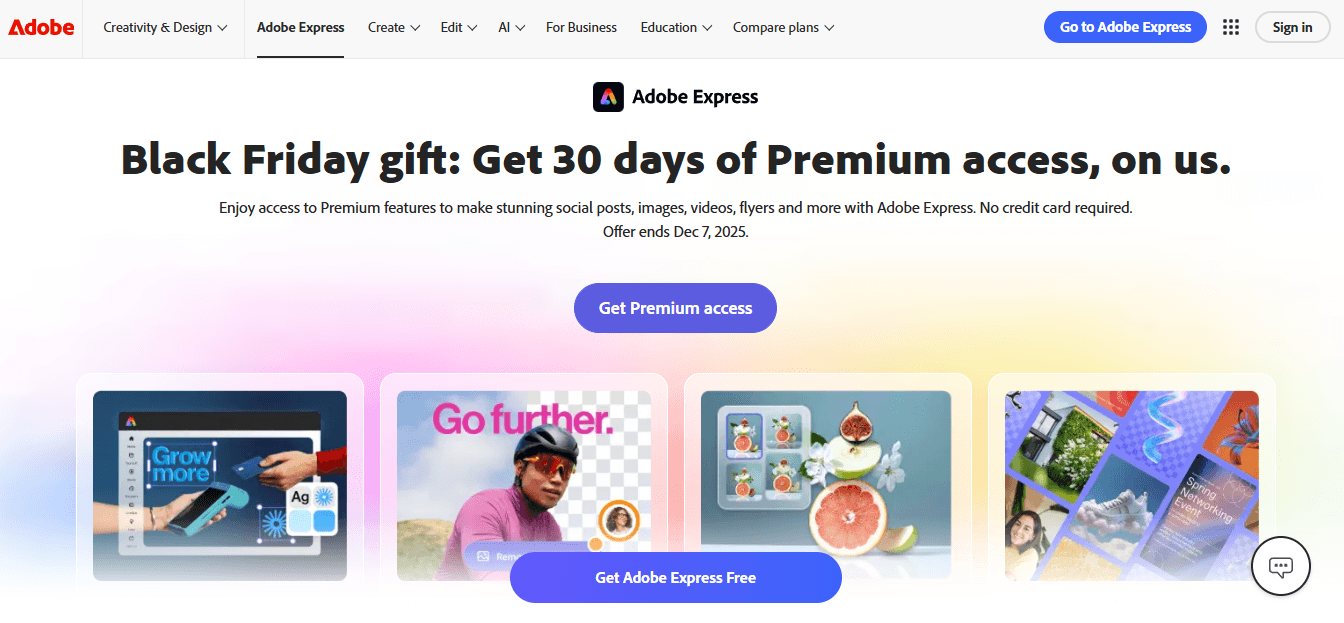
Adobe Express blends mobility with a professional asset pool, ideal when you need high-quality fonts and stock on phones or tablets.
Strengths: Adobe Fonts integration, Adobe Stock access, and simple animation features for social promos. Its mobile focus makes it invaluable for last-minute updates on the road, and the integration with Adobe’s ecosystem can be a plus for teams already using Creative Cloud.
Note that its public app metrics show a stable rating value of 4 on AppstoreSpy in 2025, signaling a mature, dependable UX, while a large review volume, such as 117,381 ratings indicates extensive real-world use and broad device coverage.
Practical Selection Rules
If you are scaling from one campaign to many, prioritize a platform that preserves brand tokens programmatically. If you need speed with minimal training, choose simple template-first tools. If photography quality determines click-throughs, choose a photo-focused editor that preserves non-destructive masters. These are not abstract tradeoffs; they determine whether you spend your next day fixing exports or shipping new creative.
Invest in Templates to Prevent Downstream Cleanup
When we onboard teams to multi-release schedules, a persistent pattern emerges: small, repeated manual choices create extensive downstream cleanup work. Accept the familiar approach early on, but plan a one-time investment to lock templates and export rules; that single choice pays back in fewer emergency fixes and consistent releases. That tidy checklist is the end of the problem until you try to actually replace an existing banner without breaking metadata and live previews.
How to Upload or Change Your Spotify Banner
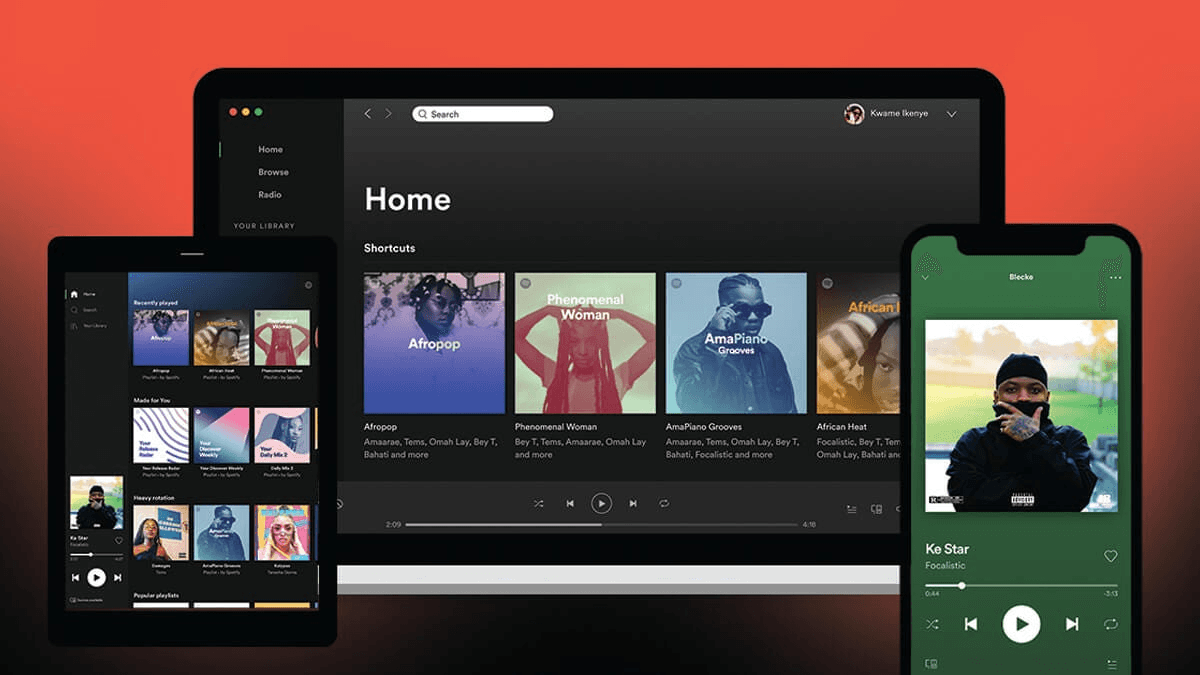
You change your Spotify banner from Spotify for Artists: open your artist profile, choose Edit Profile or the header area, upload the new image, make any available crop adjustments, and save. If the web interface limits you, consider using the desktop app or the Spotify for Artists mobile app, ensuring you have the necessary role permissions.
How Do I Troubleshoot Upload Failures?
When uploads fail, treat the problem as either a file payload issue or an access problem. Try a smaller, flattened export with metadata stripped, then upload from a desktop browser with extensions disabled or from an incognito window. If the upload still fails, check your Spotify for Artists role, as Editor or Admin rights are required to change profile assets. Team members without these rights will encounter permission blocks. Finally, clear the app cache on mobile and sign out and back in to rule out a local caching error.
Who on my team should manage banner updates?
Assign a single owner for banner publication and version control, ideally someone who also manages master artwork and licensing. This reduces conflicting uploads, accidental overwrites, and the back-and-forth that occurs when multiple people attempt to push different files on the same day. Name files with a clear version and date stamp so audits and rollbacks are fast, and store original layered masters in a controlled asset library.
How Do I Make Many Variants Without Losing Control?
Most teams continue to export and upload each variant manually because it seems quick at first. That familiar approach works for one release, but when a campaign needs dozens of sizes or style variants, manual uploads create errors, inconsistent spacing, and a lot of rework. Platforms that connect a single brief to automated resize and export rules remove that friction, compressing review cycles from days to hours while preserving brand tokens and safe-zone checks.
What Causes Delays Between Upload and What Listeners See?
Expect a short propagation window, because caches and content delivery networks can hold the old image for a while. If your banner does not appear quickly, try checking from a different account or using a private browser to verify whether the change has been published. In stubborn cases, re-uploading a slightly renamed file and clearing client caches can force a refresh. If that fails, open a support ticket with your Spotify for Artists account ID and upload timestamp.
What Legal and Accessibility Checks Should I Run First?
Before you hit upload, confirm rights for every element, keep license files linked to the asset, and record model releases for identifiable people. Additionally, include descriptive copy in your profile bio or release notes so that screen reader users can get context if the platform does not support alt text for banners. Treat the banner like a storefront window, where the headline must be legible at a glance and all supporting props are cleared for commercial use.
A Few Quick, Practical Hacks That Save Time
If mobile web blocks editing, use the desktop browser or the mobile app, then confirm changes from a separate device.
Use a small, clear filename without special characters to avoid server-side parsing errors.
Keep a rollback file ready with the previous artwork so you can restore visuals immediately if a new upload causes a problem.
It’s frustrating when a simple swap turns into a day of troubleshooting, but that’s only the surface of the problem when you need to scale a single creative brief into dozens of production-grade variants.
Related Reading
Try FLORA's AI-native Creative Canvas for Free Today
It’s exhausting when generators fail to match brand fonts and colors, forcing designers into last-minute fixes that delay launches. That’s why we recommend considering FLORA as a unified AI playground. Over 10,000 users have already tried FLORA’s AI-native Creative Canvas, and 90% report increased productivity after adopting it. You can judge for yourself whether consolidating models, enabling live collaboration, and automating exports on a single canvas truly shortens your review cycles.

"/><stop offset="1" stop-color="rgba(15, 15, 15, 0)"/></linearGradient></defs><path d="M 899.729 124.429 L 931.177 124.429 L 931.177 108.467 L 946.905 108.467 L 946.905 44.616 L 884.001 44.616 L 884.001 92.504 L 868.274 92.504 L 868.274 124.429 L 852.554 124.429 L 852.554 140.392 L 836.826 140.392 L 836.826 156.355 L 852.554 156.355 L 852.554 172.317 L 836.826 172.317 L 836.826 204.242 L 821.098 204.242 L 821.098 236.168 L 852.554 236.168 L 852.554 252.129 L 758.2 252.129 L 758.2 236.167 L 789.65 236.167 L 789.65 204.241 L 805.378 204.241 L 805.378 172.316 L 821.098 172.316 L 821.098 124.428 L 836.826 124.428 L 836.826 92.504 L 852.554 92.504 L 852.554 44.616 L 836.826 44.616 L 836.826 28.654 L 962.625 28.654 L 962.625 44.616 L 978.353 44.616 L 978.353 60.579 L 994.081 60.579 L 994.081 76.541 L 978.353 76.541 L 978.353 124.429 L 946.905 124.429 L 946.905 140.392 L 931.177 140.392 L 931.177 156.355 L 946.905 156.355 L 946.905 236.168 L 978.417 236.168 L 978.417 220.205 L 994.145 220.205 L 994.145 204.242 L 1009.865 204.242 L 1009.865 188.28 L 1025.593 188.28 L 1025.593 204.242 L 1009.865 204.242 L 1009.865 220.205 L 994.145 220.205 L 994.145 236.168 L 1025.593 236.168 L 1025.593 252.13 L 915.449 252.13 L 915.449 156.355 L 899.729 156.355 Z M 1135.672 172.317 L 1119.944 172.317 L 1119.944 76.541 L 1104.216 76.541 L 1104.216 92.504 L 1088.496 92.504 L 1088.496 108.467 L 1072.768 108.467 L 1072.768 92.504 L 1088.496 92.504 L 1088.496 76.541 L 1104.216 76.541 L 1104.216 60.579 L 1119.944 60.579 L 1119.944 28.654 L 1135.672 28.654 L 1135.672 60.579 L 1151.392 60.579 L 1151.392 236.168 L 1167.12 236.168 L 1167.12 252.13 L 1104.216 252.13 L 1104.216 236.168 L 1119.944 236.168 L 1119.944 188.28 L 1135.672 188.28 Z M 1072.768 124.429 L 1072.768 140.392 L 1057.041 140.392 L 1057.041 156.355 L 1041.321 156.355 L 1041.321 172.317 L 1025.593 172.317 L 1025.593 156.355 L 1041.321 156.355 L 1041.321 140.392 L 1057.041 140.392 L 1057.041 124.429 Z M 176.61 25.988 C 124.406 25.988 78.864 38.954 68.867 80.108 C 64.424 102.095 70.533 130.282 105.522 145.504 C 107.678 146.379 109.332 146.83 110.516 147.152 C 112.382 147.661 113.082 147.852 112.742 148.886 C 112.186 150.577 106.633 150.014 102.19 148.323 C 69.424 136.484 51.65 107.168 54.983 77.289 C 60.536 35.572 109.966 -1.636 179.387 0.056 C 202.713 0.056 238.812 5.692 273.246 15.276 C 293.795 20.914 321.009 28.243 346.555 34.444 C 369.881 24.86 392.096 18.659 411.534 18.659 C 425.628 18.659 438.846 21.919 444.414 28.654 L 537.86 28.654 L 537.86 44.616 L 506.41 44.616 L 506.41 60.579 L 490.685 60.579 L 490.685 92.504 L 474.959 92.504 L 474.959 124.429 L 459.233 124.429 L 459.233 172.317 L 443.508 172.317 L 443.508 220.205 L 427.783 220.205 L 427.783 236.168 L 522.135 236.168 L 522.135 220.205 L 537.86 220.205 L 537.86 204.242 L 553.586 204.242 L 553.586 172.317 L 569.311 172.317 L 569.311 204.242 L 553.586 204.242 L 553.586 236.168 L 537.86 236.168 L 537.86 252.13 L 364.881 252.13 L 364.881 236.168 L 396.332 236.168 L 396.332 220.205 L 412.058 220.205 L 412.058 172.317 L 427.783 172.317 L 427.783 140.392 L 443.508 140.392 L 443.508 92.504 L 459.234 92.504 L 459.234 44.616 L 444.157 44.616 C 437.338 52.415 419.206 55.303 394.318 55.303 C 379.323 55.303 357.108 53.048 349.333 51.92 C 337.67 63.196 325.452 77.853 314.9 90.82 C 305.307 102.032 297.996 111.856 290.818 121.501 C 284.281 130.284 277.855 138.919 269.914 148.323 C 283.798 148.886 298.794 147.759 309.901 143.812 C 320.454 129.155 333.783 122.39 342.669 124.645 C 351.554 126.9 350.444 135.92 337.67 145.504 C 335.4 147.26 333.256 148.887 331.193 150.453 C 322.659 156.932 315.515 162.356 306.569 171.436 C 304.66 173.374 302.994 175.312 301.571 176.968 C 299.269 179.646 297.602 181.584 296.572 181.584 C 293.24 182.148 294.351 172 296.572 166.363 C 299.349 159.597 302.126 154.524 304.903 150.577 C 295.462 153.396 284.91 154.524 266.026 154.524 C 264.938 155.812 263.791 157.222 262.545 158.751 C 259.978 161.904 256.993 165.569 253.253 169.745 C 204.381 225.557 123.85 256 71.645 256 C 29.993 256 0 239.087 0 212.591 C 0 193.987 12.774 175.947 34.99 175.947 C 53.317 175.947 61.092 188.349 60.537 200.188 C 59.981 208.644 57.204 213.718 51.651 219.92 C 47.763 224.429 44.431 228.376 44.431 234.013 C 44.431 243.597 52.762 249.798 68.867 250.362 C 111.631 253.181 142.177 234.013 176.61 195.678 C 190.494 180.456 200.491 168.054 210.488 153.96 C 198.27 153.96 186.607 153.96 179.943 154.524 C 172.902 154.799 168.37 155.744 165.639 156.313 C 162.768 156.912 161.886 157.096 162.17 155.652 C 162.726 153.396 167.724 149.45 184.385 148.323 C 188.537 147.94 196.791 148.077 204.443 148.204 C 208.052 148.264 211.528 148.323 214.375 148.323 C 222.151 137.611 231.037 125.772 242.7 113.37 C 264.915 89.128 294.35 65.451 323.23 47.411 C 307.124 45.719 281.021 40.645 263.804 37.263 C 239.923 32.753 203.268 25.988 177.166 25.988 L 176.61 25.988 Z M 365.438 39.518 C 386.542 45.156 403.204 46.847 413.2 46.847 C 427.64 46.847 440.969 42.336 441.524 36.136 C 442.08 29.37 428.751 24.296 410.979 24.296 L 410.423 24.296 C 394.317 24.296 375.435 32.753 365.438 39.518 Z M 711.023 252.129 L 616.672 252.129 L 616.672 236.167 L 600.946 236.167 L 600.946 220.204 L 585.221 220.204 L 585.221 108.466 L 600.946 108.466 L 600.946 76.54 L 616.672 76.54 L 616.672 60.578 L 632.396 60.578 L 632.396 44.616 L 663.847 44.616 L 663.847 28.654 L 758.2 28.654 L 758.2 44.616 L 773.924 44.616 L 773.924 60.579 L 789.65 60.579 L 789.65 172.317 L 773.924 172.317 L 773.924 188.28 L 758.2 188.28 L 758.2 220.205 L 742.474 220.205 L 742.474 236.168 L 711.023 236.168 Z M 663.847 44.616 L 663.847 60.579 L 648.122 60.579 L 648.122 76.541 L 632.396 76.541 L 632.396 108.467 L 616.672 108.467 L 616.672 220.205 L 632.396 220.205 L 632.396 236.168 L 695.298 236.168 L 695.298 220.205 L 711.023 220.205 L 711.023 204.242 L 726.749 204.242 L 726.749 188.28 L 742.474 188.28 L 742.474 156.355 L 758.2 156.355 L 758.2 60.579 L 742.474 60.579 L 742.474 44.616 Z" fill="url(%23k7ftP17bN-2050371890-linear-gradient)" height="255.9995555606772px" id="k7ftP17bN" width="1167.1199228535695px"/></svg>)